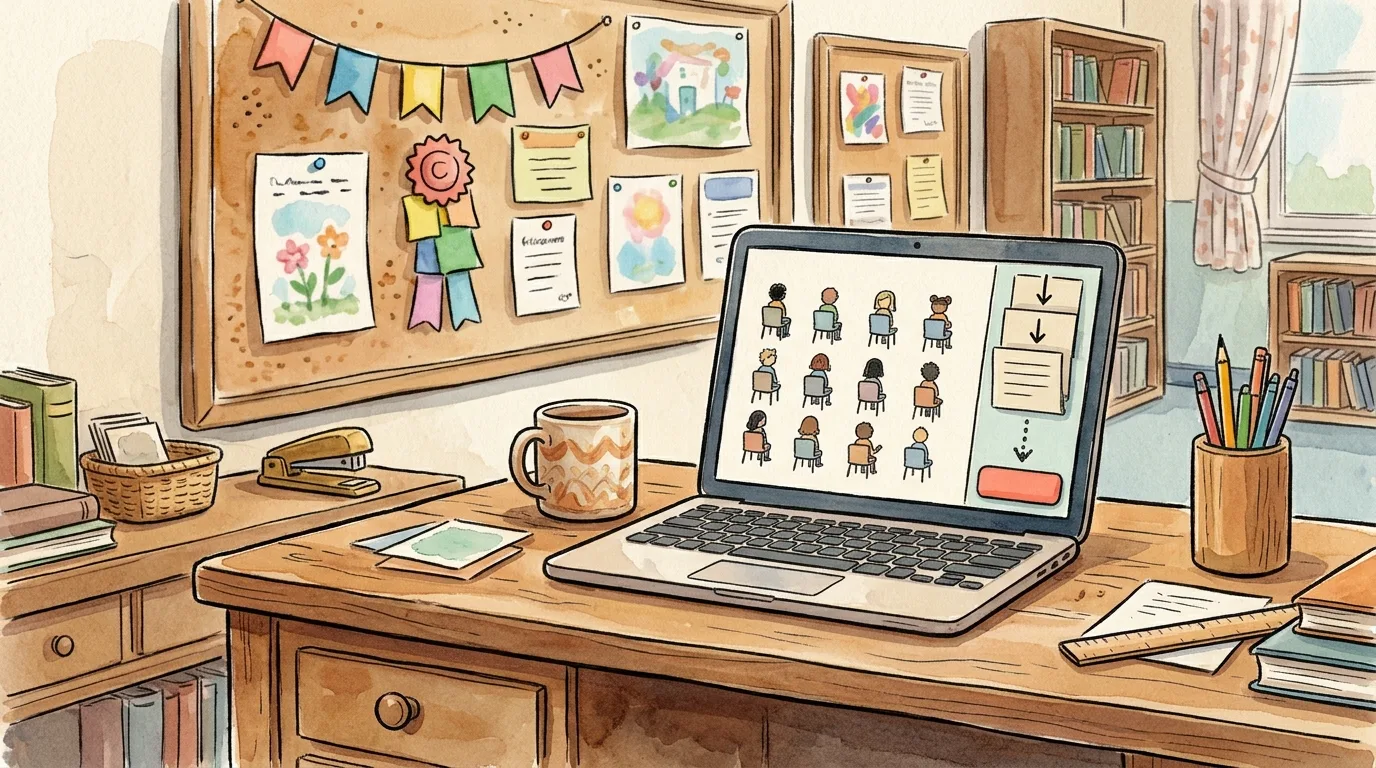
Inclusive Seating exists to turn your roster and your room into a seating chart, and the button that does it is Randomize. On a large monitor, you've always been able to see it. On a smaller laptop, the sidebar ran past the bottom of the screen and Randomize was the last thing in line. You had to know to scroll for it, and nothing on the screen told you it was there.
This update fixes that. It also moves a few things around to make room, so here's what's different and where to find it.
The Randomize Button Now Stays on Screen
The Randomize panel now stays pinned to the bottom of the sidebar. When the window is too short to show everything, the other panels scroll and slide behind it, and Randomize doesn't move. You can add a student, scroll back to the top, open Manage class, and the button is in the same spot the whole time.
On a taller screen, you'll barely notice a change. The panel sits right under Add classroom elements, the same distance apart as every other panel, and any spare room goes underneath it.
Everything inside the panel works the way it did before. Alternate boy-girl came along with it, and clicking the Randomize header still collapses the panel and the seating chart together.
A Small Arrow Shows When There's More Below
A pinned panel creates a new problem: with something sitting at the bottom of the sidebar, it's harder to tell that more is hiding behind it. So when there's more to see, a soft fade and a small arrow appear just above Randomize. Click the arrow to move down, or scroll the way you normally would. Once you reach the end, both disappear.
In a short window, the sidebar also makes better use of its space. The one-line descriptions under Add a student, Add classroom elements and Randomize step aside, so you get more of the controls you came for. Make the window taller and they come back.
Blog, About and Feedback Moved to the Header
These links used to sit at the very bottom of the sidebar, under Randomize. That took up a lot of room for things you rarely need in the middle of building a chart, and on a small screen it put them a long scroll away.
You'll now find Blog, About this site, Privacy policy & FAQ and our feedback address in one row across the top of the app. They do what they always did.
The Demo Tour Now Scrolls to Each Stop
When you click Try a demo, numbered purple circles walk you through the app. On a small screen, the first circle could land out of sight, and the tour looked like it hadn't started. The tour now brings each stop into view as you reach it. It scrolls the sidebar for a stop in the sidebar and the page for a stop in the main area. If you've collapsed the panel a stop lives in, the tour opens that panel for you.
If the next stop is already on your screen, nothing moves. We didn't want the page jumping around while you're looking at it. For a full walkthrough of every feature, our complete guide to Inclusive Seating is up to date with these changes.
What Didn't Change
This update is about where things sit on the screen and nothing else. Your saved classes open exactly as they did, and the way Randomize places students hasn't changed. Your class data still stays in your browser, with no account and no server involved. If you haven't made a backup lately, our post on backup files and autosave shows how it works.
Tell Us What You Think
We can only test so many screens, and school laptops come in every size. If something is still out of reach on yours, or a stop in the tour doesn't show up where you'd expect, send us a note with the feedback button at the top of the app and tell us what you're using.