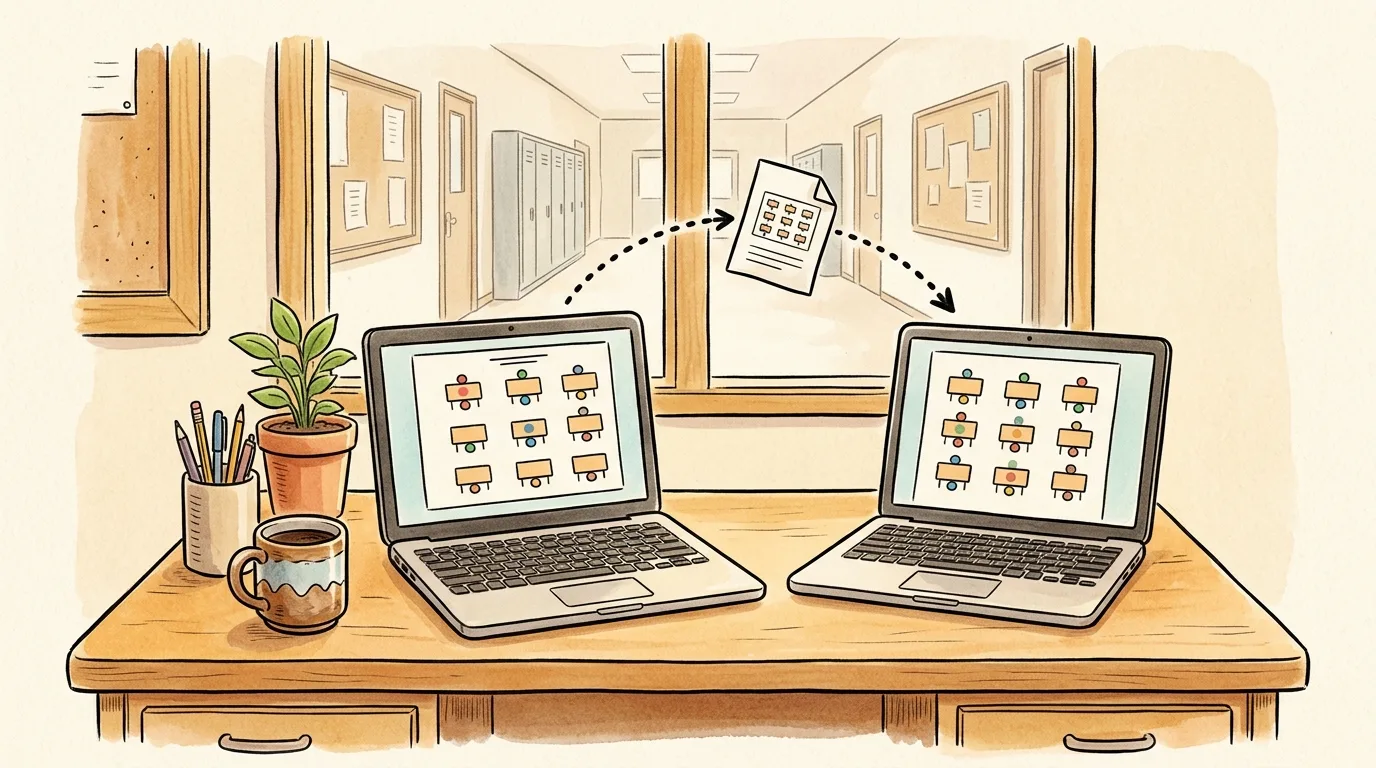
Since the first version of Inclusive Seating, your classes have lived in exactly one place: the browser you made them in. That's a big part of why the site is private. There's no account and no server, so there's nothing for us to see. But it also meant that one wrong click in your browser settings, or one school laptop that wipes itself at sign-out, could erase a whole year of careful seating decisions. The best advice we could give was to print a PDF, and a PDF can't be loaded back in.
That's fixed now. You can now keep a copy of your classes outside the browser, and the app holds on to changes you haven't saved yet. This post walks through how both work, and what stayed exactly the same.
Why Your Saved Classes Needed a Backup
Browsers keep site data until something clears it, and plenty of things do. Clearing your cookies is the obvious one. Less obvious, many school-managed Chromebooks reset browser data every time a teacher signs out, which means a class saved on Monday can be gone by Tuesday without you doing anything wrong.
Because Inclusive Seating never sends your data anywhere, we have no copy to restore. That's the right trade for student privacy, but it put all the risk on you. A backup file moves a copy of your work somewhere you control.
How to Back Up Your Classes
Open the Manage class panel in the sidebar. Under Back up or move classes, click Export all. Your browser downloads a single file, with today's date in its name, that holds every saved class: the roster, each student's restrictions, the classroom layout and orientation, and the current seating chart.
If you only want one class, pick it in the class list and click Export instead, right between Load and Delete. That's handy for sending a single class to a co-teacher.
Put the file somewhere that isn't your browser. A school drive is a good home for it. Keep in mind that the file contains your students' names and their seating restrictions, which can describe accommodations. Treat it like any other document with student information, and keep it where your school would want that kind of file kept.
A backup only includes classes you've saved. If you have unsaved changes when you click Export, the app tells you so and lets you go back and save first.
How to Move Your Classes to Another Computer
The same file is how you switch devices. Click Export all on the old computer, then open Inclusive Seating on the new one, open Manage class, click Import, and choose the file.
If the new browser is empty, your most recent class opens right away, so you can pick up where you left off. If it already has a class with the same name as one in the file, the app asks before touching anything: replace it with the version from the file, or keep the one you have. Nothing gets overwritten without you saying so.
Import also checks every file before it saves a single class. It only keeps what a real Inclusive Seating class contains and throws away anything else, so a file that was edited or tampered with can't make the app do something it shouldn't.
Unsaved Changes Now Survive a Closed Tab
Here's the other way work used to disappear. You spend twenty minutes adjusting restrictions, the tab closes or the laptop restarts for an update, and everything since your last Save is gone.
Inclusive Seating now keeps a running copy of your unsaved changes in the browser as you work. Open the site again and they're back on screen, with a short message saying they were restored. Click Keep changes to carry on, or Discard changes to return to the last version you saved. If what came back turns out to be identical to your saved class, the app skips the message entirely.
Saving is still the step that counts. The automatic copy is a safety net for the gap between saves, not a replacement for them.
That copy lives in the same browser as everything else, so it won't survive a school device that wipes its data. A backup file will.
A Reminder When It's Been a While
Nobody remembers to back things up, us included. So once your saved classes have gone a month without a backup, a small card appears at the top of the sidebar with an Export backup button. One click and it's done. If now isn't a good time, click Not now and the card stays out of your way for two weeks. After you back up, it won't come back until you've changed something and another month has passed.
There's one more quiet change. After you save your first class, Inclusive Seating asks your browser to treat its data as worth keeping, which makes the browser less likely to clear it on its own when space runs low. Most browsers decide this by themselves. Firefox may ask you once, and saying yes helps.
What Didn't Change: Your Data Still Stays With You
None of this adds an account or a server. Exporting doesn't upload anything. The file goes straight from your browser to your computer, and it never passes through us. Importing reads the file inside your browser. Inclusive Seating still can't see your classes, and it still can't recover them for you, which is exactly why the backup file matters.
If you keep IEP or 504 accommodations in your seating restrictions, as we suggest in this guide to accommodations in your seating chart, a backup is the easiest way to make sure that work carries over from one semester to the next. For a full tour of every feature, the complete guide to Inclusive Seating now covers backups and autosave too.
Tell Us What You Think
This is the first of a series of posts we'll write each time something meaningful changes in Inclusive Seating, so you always know what's different and why. If a backup didn't behave the way you expected, or your school's devices do something we haven't planned for, use the feedback button at the top of the app. We read every message, and a lot of what's coming next started as a note from a teacher.