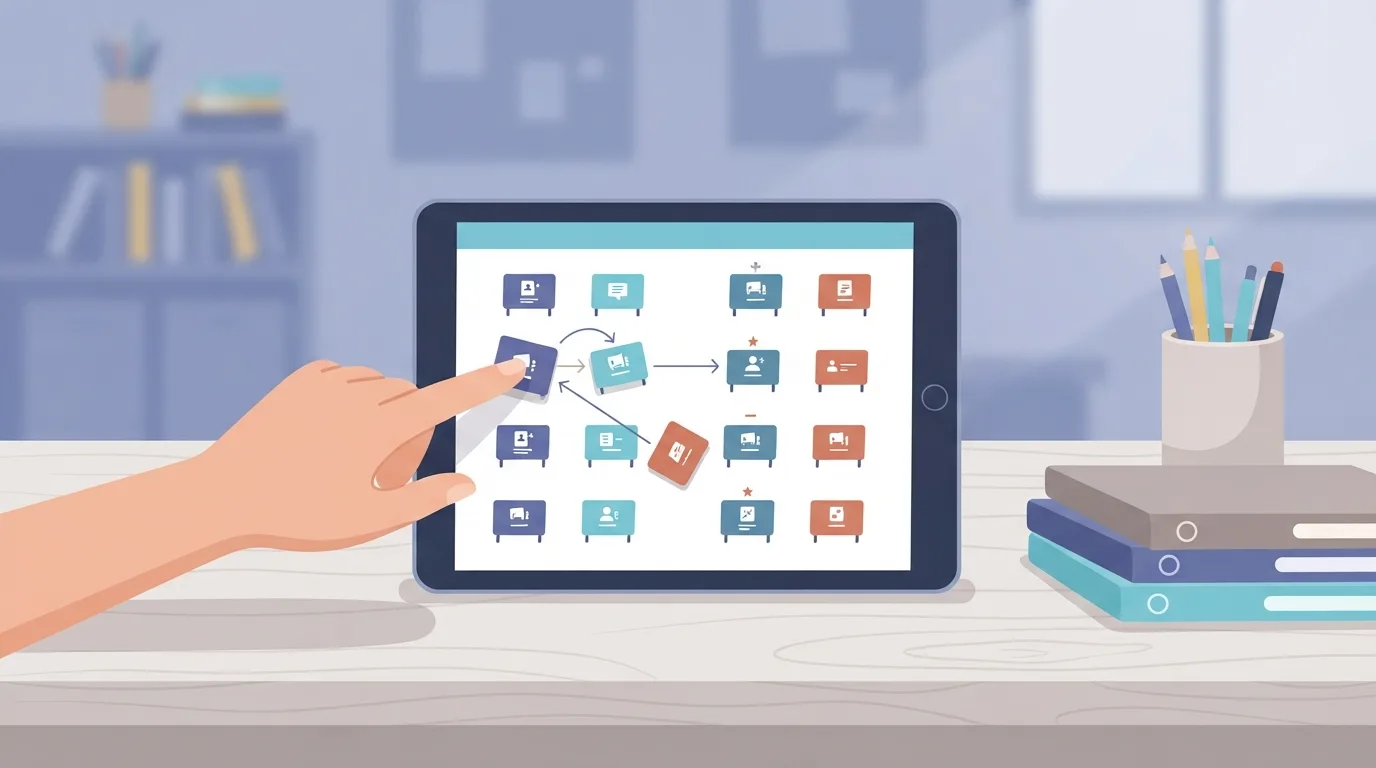
Open Inclusive Seating on an iPad until this week and you got a card that said "Desktop required". That never sat well with us. Plenty of teachers do their planning on a tablet, on the couch or in the ten minutes before the bell, and a seating chart is exactly the kind of thing you want to sketch out there.
Now you can. Hold your iPad or Android tablet sideways, open the site, and the whole app is there. A few days ago we made the sidebar collapsible so the app fits screens as narrow as 1,024 pixels, and most tablets turned sideways are at least that wide. This update makes the rest of the app work with your fingers.
Which Tablets Work
Any iPad held sideways works, from the iPad mini up to the largest iPad Pro, in Safari or Chrome. Android tablets work the same way, in Chrome, Firefox or Samsung Internet. If your tablet's browser is up to date, you'll go straight into the app. On an older iPadOS, the app still opens, with a note suggesting an update first, and Continue anyway lets you carry on.
Phones still get a card instead of the app. A seating chart for 30 students needs more room than a phone screen has, and we'd rather tell you that than hand you something cramped. We're working on a better page for phones next.
Hold It Sideways
The app needs a screen at least 1,024 pixels wide, which on a tablet means landscape. If you open the site with the tablet upright, you'll see a card asking you to turn it sideways. Turn it, and the app opens by itself.
If you turn the tablet upright while you're working, a cover asks you to turn it back. Nothing underneath changes. Your roster, your room and your chart stay exactly where they were, and they're there again the moment you turn the tablet back.
On most tablets the sidebar is tucked behind the Sidebar button at the top left, the same way it works on a smaller laptop. Tap it to open the sidebar over the page, and tap it again to close it. On the largest iPad Pro held sideways, the sidebar stays open on the left like it does on a desktop.
Drag Students With Your Finger
Everything you'd do with a mouse, you can do with a finger. Drag a student around the roster, move seats and the teacher's desk around the classroom, and swap two students in the finished chart by dragging one onto the other. Scroll the page by swiping anywhere outside the grids.
The small icons on each student are easier to hit now, too. The pencil, the person and the trash can each take a bit more space around them on a touch screen, without making the icons themselves any bigger. The trash can still deletes a student with one tap, so take a little care with it.
Tap for Tips, and Two Taps for the Tour
With a mouse, hovering over a question mark shows a short tip. A finger can't hover, so on a tablet you tap the question mark instead. Tap anywhere else to close the tip.
The demo tour works the same way. When you click Try a demo, numbered circles walk you through the app, and with a mouse a single click finishes a step. On a tablet, your first tap on a circle shows what the step is about, and a second tap finishes it. That way you can read each tip before it disappears.
We also fixed a small annoyance you'd notice right away: tapping a student no longer leaves it stuck slightly enlarged, the way a hover effect does on a touch screen.
What Didn't Change
Your class data still stays in the browser you use, with no account and no server. That means a class you saved on your laptop isn't on your iPad automatically. To move it, open Manage class on the laptop, click Export all, and get the file to your iPad, by AirDrop or email to yourself. Then tap Import on the iPad and pick the file. Our post on backup files and autosave walks through it.
On a laptop or desktop with a mouse, nothing changed at all. Hover works as before, and one click still finishes a tour step. The complete guide to Inclusive Seating covers every panel and button.
Tell Us How It Goes
Tablets vary more than laptops do, and we've only held so many of them. If something doesn't respond to your finger the way you expect, or your tablet doesn't get the app when it should, send us a note with the feedback button at the top of the app. Tell us which tablet and which browser you're using, and we'll take a look.